SP-3 Tape Stop manual
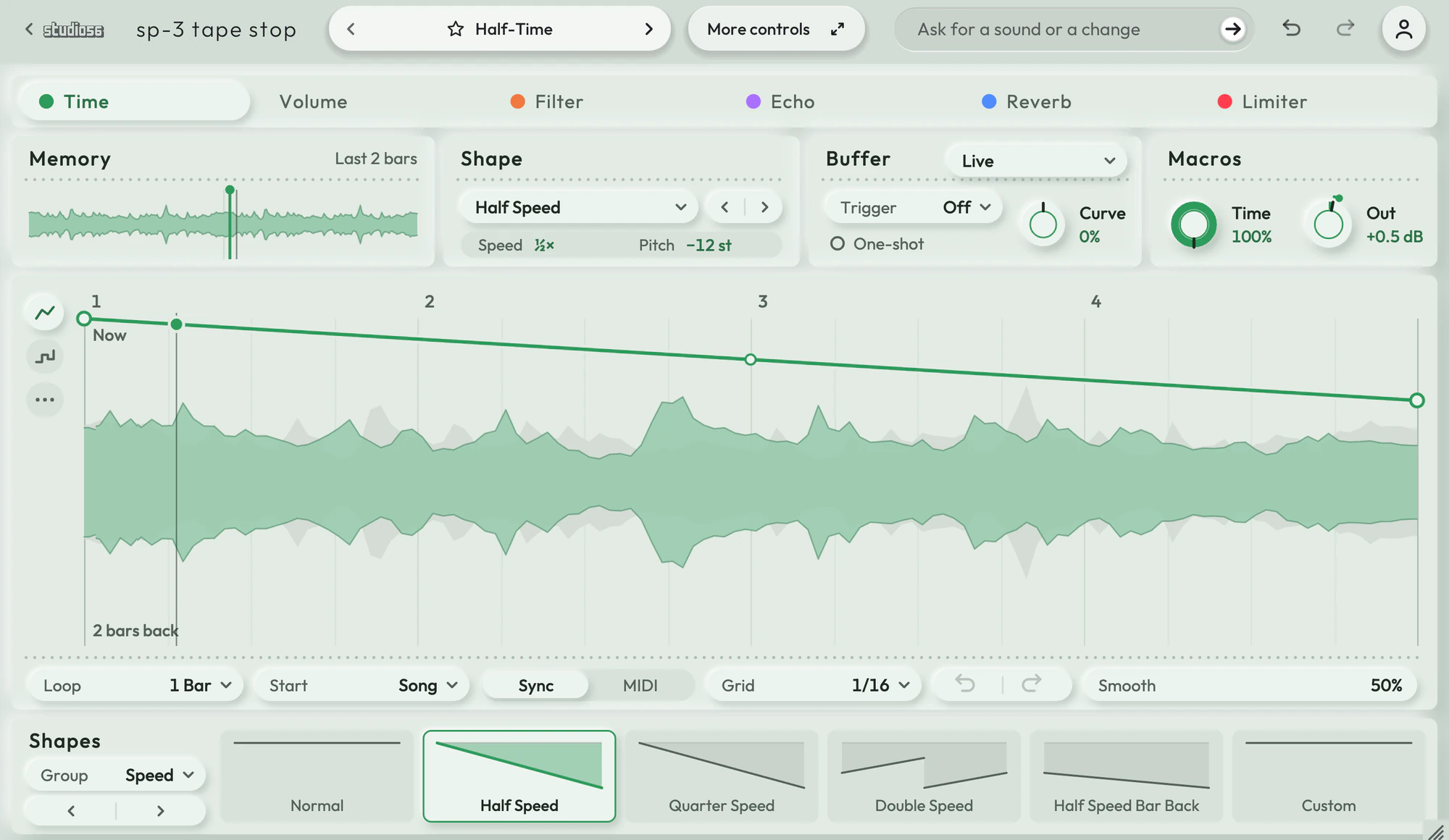
Replays the last two bars at the speed and volume you draw, in time with your song. SP-3 Tape Stop keeps the last two bars of whatever plays through it and reads them back along a Time curve locked to your song. Where the curve runs flat the sound plays as it comes, the steeper it falls the slower the sound plays, through half speed an octave down to a stop and then backwards, and a step down jumps back to repeat a beat. A Volume curve beside it gates, ducks or fades the sound, and each curve is one of 36 shapes or one you draw.
On this page
Open it in your DAW
SP-3 Tape Stop plays inside Studio 56 FX, which installs with Studio 56. Add Studio 56 FX to a track as an effect and sign in, then choose SP-3 Tape Stop on Home.
If you don’t have Studio 56 yet, the Support page shows how to install it and add it to a track in your DAW.
The four knobs
The four knobs on SP-3 Tape Stop’s screen shape the whole sound, and each preset sets where they start.
- Time
- Fades the preset’s move in, from the loop as it plays at the bottom to the full slow-down or stop at the top.
- Dark
- Closes a low-pass filter over the sound and lifts its resonance, from open to dark and hollow.
- Echo
- Throws the sound into a dotted-eighth echo that bounces between the sides and rings longer as it rises.
- Space
- Puts the sound in a plate reverb that grows longer and wetter as it rises.
Your DAW records every turn as automation, and Undo takes a turn back.
Using presets
Click the preset’s name at the top to see them all, or use the arrows beside it to go to the next or the one before. Its folders are down the side, with Favorites and My presets under them, and the star beside a preset keeps it in Favorites.
Save as new keeps the sound you have under a name of your own in My presets, and Save updates one of yours. Point at one of yours to rename or delete it.
Write 4 more like this writes four new presets close to the one you’re on and places them around it on the map beside the list. Drag the dot between them to blend, and Keep this sound saves the blend as a preset of your own. It works with Pro and on a plugin you bought.
101 presets
SP-3 Tape Stop comes with 101 presets in 12 folders, each named for how it sounds.
- Half-TimeHalf-Time0:13
- Half-Time Two BarsHalf-Time0:13
- Half-Time Slowed ReverbHalf-Time0:13
- Half-Time UnderwaterHalf-Time0:13
- Half-Time DropHalf-Time0:13
- Half-Time Quarter ChopsHalf-Time0:13
- Half-Time Beat ChopsHalf-Time0:12
- Half-Time Then StopHalf-Time0:12
- Half-Time Then ReverseHalf-Time0:14
- Half-Time Last Beat BackwardsHalf-Time0:13
+ 91 more presets
More controls
More controls at the top opens the settings SP-3 Tape Stop’s face has no room for. Press it again to go back.
A speed curve you can draw yourself, from double speed to a full stop or backwards. A volume curve beside it that chops, ducks or fades the loop in time. Moves from a quarter beat to two bars long, always in time with your song. A filter in ten types, an echo from 1/64 to 32 bars, a plate reverb and a limiter after it.
- Beat Repeat Gate
- Chops what plays through it in time with the song into pumps, stutters, repeats, reversed bars and tape stops.
- Filter
- Runs the whole sound through one filter in ten types, with resonance and drive.
- Filtered Stereo Delay
- Echoes from 0.3 ms to 12 seconds or a note of the song, in parallel, ping-pong, crossed or as two mono lines, with a filter in the feedback loop and a ducker that turns the echoes down while the sound plays.
- Plate Reverb
- Adds a smooth plate reverb, from a short ambience behind drums to a long bright or dark wash behind pads.
- Clip Limiter
- Sits last in the chain, a clipper into a limiter that holds the output under the ceiling you set.
System requirements
- Mac
- macOS 10.15 Catalina or later, on Apple silicon or Intel
- Windows
- Windows, 64-bit
- Plugin formats
- VST3 and AU on Mac, VST3 on Windows
- DAWs
- Ableton Live, Logic Pro, GarageBand, FL Studio and other DAWs that load VST3 or AU plugins, but not Pro Tools
- Internet
- To sign in, to get what you buy and to make instruments and effects, but not to play them
More help
Installing Studio 56, using it offline and other questions are answered on the Support page. For anything else, write to oliver@studio56.ai.